
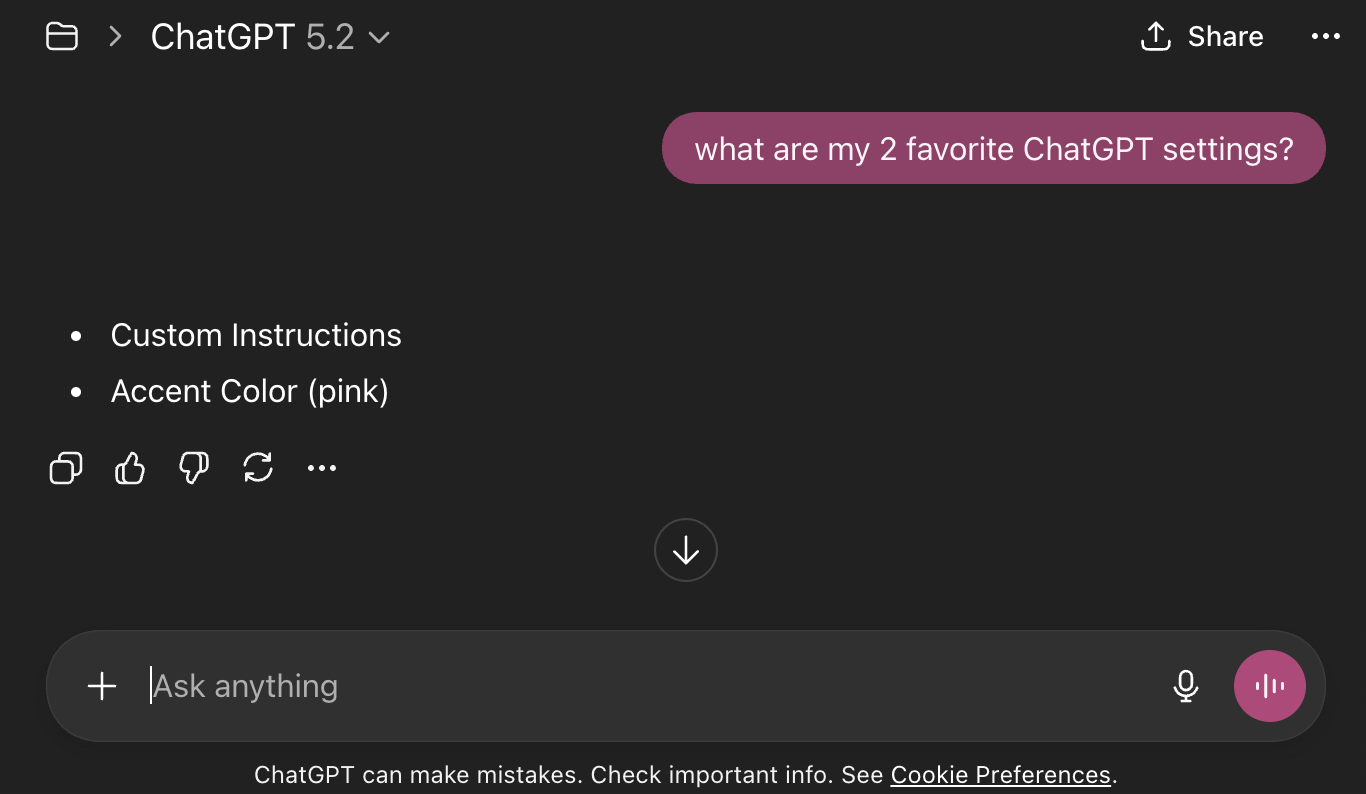
✨ TL;DR
Most people use ChatGPT without configuring it, which limits the quality and consistency of the results, especially at work. Because LLMs operate on probabilistic prediction, any ambiguity in the input increases the variance of the output.
Spending a few minutes in the Settings section reduces guesswork, improves consistency, and aligns the assistant with your role, workflow, and preferences.
We do not buy a new car and immediately start driving without adjusting the seat, mirrors, and steering wheel.
We do not get a new coffee machine, throw in the coffee where we think it goes, and hope for the best.
We do not usually use tools without at least a minimum setup.
Yet, when it comes to AI chatbots, this is exactly what most people do.
We don’t think twice about just opening the interface and shoot our question. The interface is so simple that our brain doesn’t even have the time to think about what’s going on behind the scenes.
This becomes a real limitation especially if you use it at work.
If you have never opened the Settings section, this is your sign to do it! With just a few minutes of configuration, you can improve the quality, consistency, and usefulness of the responses you get. You can also shape how ChatGPT behaves, what it remembers, and how it fits into your daily workflows.
Quick note: I am using ChatGPT as the example here, but the same logic applies to any AI assistant. If there is a settings section, it exists to give you more control. Ignoring it means giving up part of the tool’s potential. Use it!
Top 10 settings to configure
Let’s go through the 10 core settings that can elevate how you use ChatGPT and make your life easier, especially in professional contexts.
1. Appearance
Appearance settings affect how you visually interact with ChatGPT. You can usually control things like light or dark mode.
If you use ChatGPT for long work sessions, or you’re already chained to a desk and a screen for most of your day, switching to dark mode can make a difference, by reducing eye strain and making it easier to scan longer outputs like reports or code snippets.
2. Language
Language settings define the default language ChatGPT uses to reply.
If you work in Italian but often switch to English for documentation or international clients, setting the language to auto-detect prevents you from constantly correcting the assistant or rewriting outputs. This is particularly useful for multilingual professionals.
3. Personalization
Personalization defines how ChatGPT generally responds to you. This can influence tone, depth of explanation, or preferred formats.
For example, if you prefer concise, bullet-point answers with lots of emojis (are you ok?) rather than long explanations, personalization helps ChatGPT default to that style without you having to ask for it in every prompt.
Over time, this makes interactions faster and more aligned with how you think.
4. Custom instructions
Custom instructions are one of the most powerful features available. They let you explicitly tell ChatGPT any particular rule you want it to ALWAYS follow. This is the place to put everything you find yourself repeating over and over again in prompts.
For example:
- If you work in SEO, product, or marketing, you can request actionable outputs, clear assumptions, and concrete examples.
- If you work in a language other than English, you can specify stylistic constraints such as never using the em dash or avoiding Title Case in headings.
- If you use a specific prompting framework for reusable prompts, this is where you enforce it globally.
- You can also use this section to set higher quality and reliability guardrails, especially when writing or researching. For instance, you might instruct ChatGPT as following:
“When helping me write: (1) Never fabricate statistics, quotes, or case studies. (2) If I upload source documents, only use information from those files, unless instructed to do otherwise. (3) If you don’t have reliable information on something, flag it with [NEEDS VERIFICATION] so I know to check it. (4) Distinguish clearly between facts and opinions/assumptions.”
This section alone can upgrade your entire experience.
5. About you
The “About you” section provides background context that persists across conversations, like an extension of the custom instructions but just about your persona.
By stating your role, industry, or seniority level, ChatGPT can adjust outputs and explanations accordingly. A senior professional does not need the same level of basics as a beginner.
LLMs operate on probabilistic prediction, so any ambiguity in the input increases the variance of the output. In simple terms: less context guessing almost always means better answers.
6. Memory
Memory controls what ChatGPT can retain over time and its ability to reference to previous conversations you had with it. It enables continuity and personalization.
If ChatGPT remembers that you prefer structured summaries or that you are working on a specific project, you do not need to restate it in every new chat.
At the same time, reviewing and cleaning memory ensures outdated or incorrect information does not affect future responses. Definitely a feature to pay attention to and reevaluate every once in a while.
7. Projects
Projects help you organize conversations, files, and context around specific goals or initiatives.
While this is not a setting in the strict sense, it’s still a critical configuration layer for organizing context and is especially useful for complex, long-running work, or freelancers with multiple clients.
If you are working on a website redesign, a research report, or a client project, keeping everything inside one project allows ChatGPT to stay context-aware without mixing it with unrelated chats.
When this was release, it really turned ChatGPT into a more structured workspace instead of just a linear chat history.
8. Data controls
Data controls define how your data is handled by OpenAI. You can choose to allow your content to be used to train OpenAI models, or opt out.
If you use ChatGPT for work, especially with sensitive or proprietary information, reviewing data controls ensures you are using the tool responsibly.
This is a section everyone should check at least once.
9. Shared links
In the shared links section you can manage all the chats you shared in the past.
This is useful for auditing what content is publicly accessible, revoking access when needed, and making sure you are not unintentionally exposing work-related conversations. It is a small section, but one that is easy to overlook.
10. Export data
The export data function is especially useful if you want ot switch your go to AI chatbot without having to re explain everything to it.
For example, if you want to switch from ChatGPT to Claude (or use both), export all your chat history from ChatGPT via Settings, and then open a Claude chat, upload the document and tell the new chatbot: “This file/text is my memory from another AI assistant. Please read it and use it as my background context for all future responses”.
You just need to have the memory enabled on the new chatbot and it’s done!
The convenience and continuity race
What we’re seeing right now is a real race toward convenience and continuity. Tech giants are competing to create the best AI assistant that lets you work without friction. Just last week Google released a beta feature within Gemini that let’s users import AI chats directly into Gemini with a dedicated button (reported on TestingCatalog). A move to incentivize users to move from ChatGPT to Gemini?
Long live the settings!
ChatGPT is designed to be incredibly easy to use, but ease of use does not equal optimal use.
Most users stay at the surface level, more experienced users spend a few minutes configuring the tool so it works for them! Once these foundations are in place, Custom GPTs are where configuration can then evolve into more structured workflows.
If you want better answers, more consistent outputs, and a tool that actually adapts to your workflow, start with the settings.
Final note: I still don’t have access to Tasks and Schedules features so I can’t comment on those, but they seem pretty useful and cool too. I’ll update this list if worth it when I’ll get access and test it.